
How to Use Seedance 2.0: Step-by-Step Guide for Text-to-Video, Image-to-Video, and Audio
Learn how to use Seedance 2.0 for AI video generation. Step-by-step instructions for text-to-video, image-to-video, audio-video generation, and video editing with tips and examples.
How to Use Seedance 2.0: Step-by-Step Guide for Text-to-Video, Image-to-Video, and Audio
Last updated: June 7, 2026
You have heard about Seedance 2.0. You have seen the demos. Maybe you have even watched a few YouTube walkthroughs. But when you sat down to actually use it, you probably hit the same wall: Where do I start, and what should my first prompt look like?
This guide walks you through every step — from choosing your mode to refining your output — so you can generate your first Seedance 2.0 video in under 10 minutes.
By the end, you will know exactly how to create, edit, and optimize videos with Seedance 2.0.
Before You Start: What You Need
To use Seedance 2.0, you need:
- A web browser (Chrome, Safari, or Edge recommended)
- Access to CapCut/Dreamina, or an account on AISeedance2.app
- A clear idea of what you want to create (a text prompt, an image, or a video reference)
That is it. No special hardware. No software installation. Everything runs in the browser.
Method 1: Text-to-Video
The simplest way to start. Describe a scene, and Seedance 2.0 generates it.
Step 1: Navigate to Seedance 2
Open AISeedance2.app in your browser for our focused web workflow, or use CapCut/Dreamina for ByteDance's official consumer experience. In the web interface, you will see generation options for different input types.
📸 Screenshot suggestion: Take a screenshot of the AISeedance2.app homepage showing the generation form with the mode tabs (Multi Reference, Image to Video, Text to Video) and the model selector.
Step 2: Select "Text to Video" Mode
At the top of the generation form, you will see three tabs:
- Multi Reference — Combine text, images, video, and audio
- Image to Video — Animate a static image
- Text to Video — Generate from text only
Click "Text to Video".
Step 3: Choose Your Model
Below the tabs, you will find a model selector. On AISeedance2.app, the two main options are:
| Model | Best For | Quality and Speed | Credit Cost |
|---|---|---|---|
| Seedance 2.0 | Final outputs, cinematic shots, client-ready videos | Higher quality, better detail, stronger final polish; slower than Fast | 6 credits/s at 480p, 12 credits/s at 720p, 30 credits/s at 1080p |
| Seedance 2.0 Fast | Drafts, prompt testing, quick iterations, lower-cost experiments | Faster generation with slightly lower final quality; does not support 1080p | 4 credits/s at 480p, 8 credits/s at 720p |
If you are still exploring prompts, start with Seedance 2.0 Fast because it is cheaper and faster. Once the prompt, motion, and camera direction feel right, switch to Seedance 2.0 for the final version.
Step 4: Write Your Prompt
This is the most important step. A good Seedance 2.0 prompt includes three elements:
| Element | Example |
|---|---|
| Subject | "A young woman" |
| Camera + Style | "SnorriCam rig, cinema lenses, absolute center-locked focus" |
| Scene Transition | "seamless backgrounds physically melt and snap into new environments" |
Full example prompt:
characters: A young woman
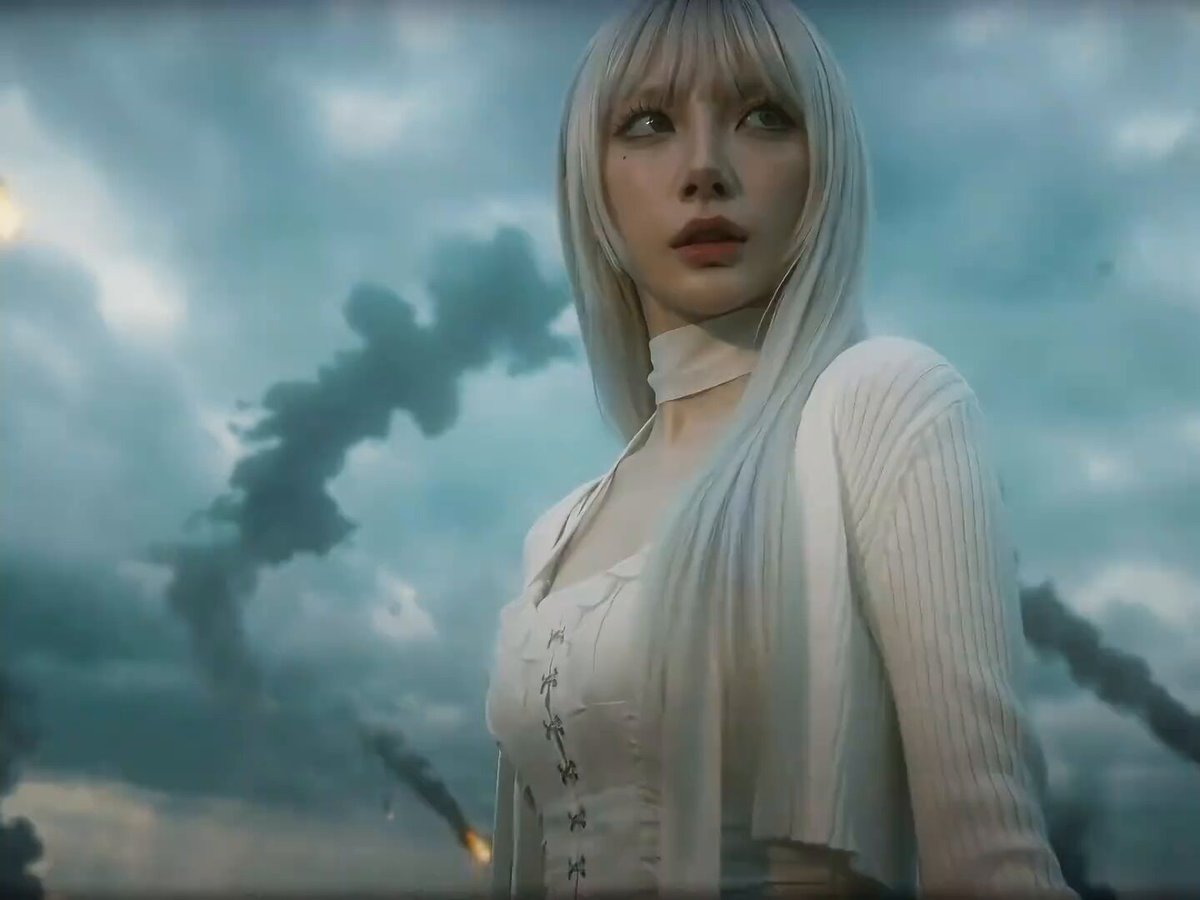
cinematic_style: A gorgeous, vivid photorealist style using a SnorriCam rig and cinema lenses for absolute center-locked focus. Transitions rely on seamless backgrounds that physically melt and snap into new environments, seamlessly synced to a spatial
SnorriCam photorealism example: center-locked character framing, cinematic lens language, and seamless scene transitions. View the reusable prompt.
Step 5: Generate and Review
Click the Generate button and wait for the result. Generation typically takes 30–90 seconds depending on clip length.
After the video appears, check these three things:
- Motion quality — Is the movement smooth and natural?
- Subject consistency — Does the subject stay recognizable throughout?
- Prompt alignment — Does the output match your description?
Step 6: Iterate and Refine
Your first output is rarely perfect. Here is how to improve it:
| Issue | Fix |
|---|---|
| Motion is too slow | Add "fast-paced" or "dynamic movement" |
| Scene is too dark/light | Specify lighting: "golden hour," "bright daylight," "neon-lit" |
| Subject looks wrong | Describe specific features: "gray fur," "blue eyes," "leather jacket" |
| Camera feels flat | Add camera direction: "slow pan," "close-up," "wide establishing shot" |
| Output lacks atmosphere | Add mood words: "dreamlike," "tense," "peaceful" |
Rule of thumb: Change one thing at a time. If you change three things, you won't know which one worked.
Method 2: Image-to-Video
If you have a static image — a product photo, a character illustration, a concept art piece — you can animate it.
Step 1: Select "Image to Video" Mode
Click the "Image to Video" tab at the top of the generation form.
📸 Screenshot suggestion: Take a screenshot of the Image to Video tab active, showing the image upload area.
Step 2: Upload Your Image
Drag and drop an image or click the upload area to select one. Supported formats include PNG, JPG, and WebP.
For best results:
- Use clear, well-lit images
- Avoid cluttered backgrounds
- Keep the subject centered
- Use images with at least 1024×1024 resolution
Step 3: Write a Motion Prompt
Tell the model how to animate the image and what should stay consistent. For transformation videos, describe the subject, identity constraints, style, wardrobe, and scene atmosphere.
Example prompt:
帮我生成分身视频:保持脸部完全一致,不改变五官和脸型,不美化。
风格参考仮面 BLACK SUN,写实暗黑,生物科技与外星科技感,压抑沉重。
变身前造型:黑色皮质风衣+黑衬衫,刘海遮额,不露额头,阴郁沉稳。
腰带:异形能量核心,无玩具感。场景:阴天户外空地,灰蓝天空,有风。
Case screenshot: dark sci-fi transformation style
Generated result: identity-preserving sci-fi transformation
Image-to-video transformation: a detailed prompt can preserve facial identity while changing costume, atmosphere, and sci-fi visual design. View the reusable prompt.
Step 4: (Optional) Add End Frame
Toggle the "Add end frame" option if you want the video to end on a specific image. This helps with loop videos or precise transitions.
Method 3: Audio-Video Generation
Seedance 2.0's signature feature — generate video and synchronized audio together.
Step 1: Select "Multi Reference" Mode
This mode allows you to combine text, images, video, and audio as inputs.
Step 2: Upload Your Audio Reference
Upload a music track, voice recording, or sound effects file. The model will analyze the audio's rhythm, mood, and structure.
Audio-video generation: the model creates a scene that matches the audio reference, synchronizing visual movement with sound.
Step 3: Combine with Text or Image Reference
Add a text prompt or image to guide the visual direction. The model will merge the audio mood with your visual instructions.
Pro tip: Start with the audio first, then add visuals. It is easier to match a scene to existing audio than to generate audio that fits a pre-made scene.
Method 4: Video Editing and Extension
Seedance 2.0 can also edit existing videos — add objects, change styles, or extend clips.
Step 1: Upload a Video
In the generation form, upload an existing video clip.
Step 2: Describe the Edit
Use a natural language prompt to describe what you want to change:
"Replace the red car with a blue truck"
"Change the background to a beach at sunset"
"Extend this clip by 5 seconds with the same style"
Video extension: the model analyzes the existing clip and extends it with consistent style and motion.
Prompt Writing Tips
After working with Seedance 2.0, you will develop a sense for what works. Here are patterns that consistently produce better results:
The 4-Part Prompt Structure
[Subject] + [Action] + [Environment] + [Style]Examples:
| Weak Prompt | Strong Prompt |
|---|---|
| "A dog running" | "A golden retriever running through a field of tall grass, golden hour lighting, slow motion, cinematic" |
| "A city street" | "A rainy Tokyo street at night, neon reflections on wet pavement, cyberpunk aesthetic, wide shot" |
| "Someone cooking" | "A chef's hands chopping vegetables in a bright modern kitchen, overhead angle, warm natural light, sharp focus" |
What to Specify
- Motion verbs: "running," "turning," "flowing," "drifting," "pulsing"
- Camera direction: "slow zoom," "tracking shot," "aerial view," "close-up"
- Lighting: "golden hour," "neon-lit," "soft diffused," "dramatic shadows"
- Mood: "peaceful," "tense," "dreamlike," "energetic"
Common Problems and Fixes
| Problem | Likely Cause | Fix |
|---|---|---|
| Video is jittery | Prompt has too many simultaneous actions | Remove unnecessary elements, focus on one action |
| Subject changes | No consistency instruction | Add "keep the subject consistent throughout" |
| Output is too dark | Ambiguous lighting | Specify light source: "soft top lighting" or "bright studio lighting" |
| Audio doesn't match | Audio + prompt mismatch | Simplify the prompt, let the audio guide the scene |
| Generation fails | Content policy trigger | Check for prohibited content in prompt or reference images |
Workflow: From First Test to Final Clip
Here is a repeatable workflow for creating polished Seedance 2.0 videos:
- Draft → Write a simple 1-sentence prompt. Generate once.
- Review → Check motion, consistency, and alignment.
- Refine → Add one modifier at a time. Generate again.
- Polish → Add camera direction and lighting.
- Finalize → Generate at highest quality.
- Export → Download and use in your project.
Frequently Asked Questions
Can I use Seedance 2.0 for free? It depends on the platform. CapCut/Dreamina may offer limited free usage in some regions, but AISeedance2.app does not currently offer free generations. We use paid credits for web generation; check the AISeedance2.app pricing page for current packages.
How long does generation take? Typically 30–90 seconds for a 5–10 second clip, depending on the model and settings.
What formats does it support? Input: text, images (PNG, JPG, WebP), video (MP4), audio (MP3, WAV). Output: MP4 with audio.
Can I use my own images as references? Yes. Upload images in the Image to Video or Multi Reference modes.
Does Seedance 2.0 generate audio automatically? When using audio-video mode, yes. In other modes, output may be silent unless you add audio reference.
What is the maximum video length? Seedance 2.0 performs best at 5–15 seconds. Longer clips may show quality degradation.
Ready to Create Your First Video?
You now have everything you need to start using Seedance 2.0. The best next step is to try it yourself.
Start a Text-to-Video → Write your first prompt and generate a video in under a minute. Experiment, iterate, and discover what Seedance 2.0 can do for your projects.
More Posts
How to Use Seedance 2.5: The Complete Guide to 30-Second AI Video (2026)
Step-by-step Seedance 2.5 guide: prompt structure, 30-second timeline planning, references, image-to-video, editing, API workflow, troubleshooting, and cost tips to get usable video on the first try.


Seedance 2.0 vs Kling 3.0: Which AI Video Model Should You Use?
Seedance 2.0 vs Kling 3.0 detailed comparison. Compare features, quality, pricing, audio-video generation, cinematic motion, and which AI video model is best for your workflow.

Seedance 2.0 vs MiniMax H3: Which AI Video Model Should You Use in 2026?
Seedance 2.0 vs MiniMax H3 detailed comparison. Compare audio-video joint generation, 2K output, native stereo audio, references, editing, pricing, open weights, and which AI video model is best for your workflow.
Newsletter
Join the community
Subscribe to our newsletter for the latest news and updates